
Email Tools for Microsoft Outlook
Sub-10ms Indexed Search • Automated Task Tracking • Smart Seasonal Archiving • GAL Name Sync
The high-performance, privacy-first productivity suite built natively for Microsoft Outlook.
-0078D4?style=flat-square&logo=windows&logoColor=white)





Per-User Installation • No administrator privileges required • 100% Offline & Private • Seamless background self-updates
🚀 Overview
Outlook is the backbone of daily business communication, but large mailboxes inevitably suffer from sluggish searches, broken Windows search indexing, mailbox quota warnings, buried action items, lost attachments on replies, and stale contact display names.
Email Tools is a lightweight, high-performance VSTO add-in engineered to solve these core limitations without requiring third-party cloud services or enterprise IT administrative rights. Everything runs locally on your PC, yielding sub-10ms search results, automated email-to-task workflow management, smart seasonal archiving, one-click attachment actions, and automated GAL directory synchronization.
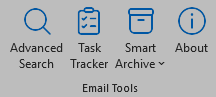
✨ Key Capabilities at a Glance
| Feature | Built-in Outlook | With Email Tools |
|---|---|---|
| Message Body Search | Slow, misses unindexed or mounted PSTs | Instant (<10ms) local SQLite FTS5 trigram index across all stores |
| Task & Workflow Tracking | Manual flags easily get buried in inbox noise | Automated Task Tracker with custom rule triggers, Kanban cards, and auto-resolve on reply |
| Attachment Search | Slow metadata lookup, no extension filters | Instant dedicated search with wildcard extensions (*.pdf, *.xlsx, etc.) |
| Mailbox Full / Quotas | Annoying quota popups, manual deletion | Smart & Emergency Archiving into auto-rotated 45 GB seasonal PSTs |
| Storage & Quota Health | Buried in backstage account settings | Fluent 2 Status Gauges with visual quota bars and drive capacity meters |
| Reply with Attachments | Manually re-attach files from sent items | 1-Click Reply / Reply All with Attachments on the Home Ribbon |
| Forward without Files | Manual attachment deletion per email | 1-Click Forward without Attachments (retains inline signatures) |
| Corporate Directory Sync | Stale historical names persist in rules & views | Automatic GAL Reconciliation during idle background time |
| Vacation Prep | Manual folder filing | 1-Click Vacation Mode keeps recent mail, archives the rest safely |
| Meeting Reminders | Overdue past meeting popups pile up | Silent automatic dismissal of outdated meeting reminders |
| Privacy & Storage | Varies by cloud configuration | 100% Local Processing; zero cloud uploads, zero external telemetry |
🔍 Feature Tour
1. Advanced Search (Sub-10ms Local Index)
A dedicated, non-blocking search cockpit featuring an intuitive query bar, real-time result sorting, virtualized grid rendering (up to 100,000 items), and a fully sandboxed preview pane.
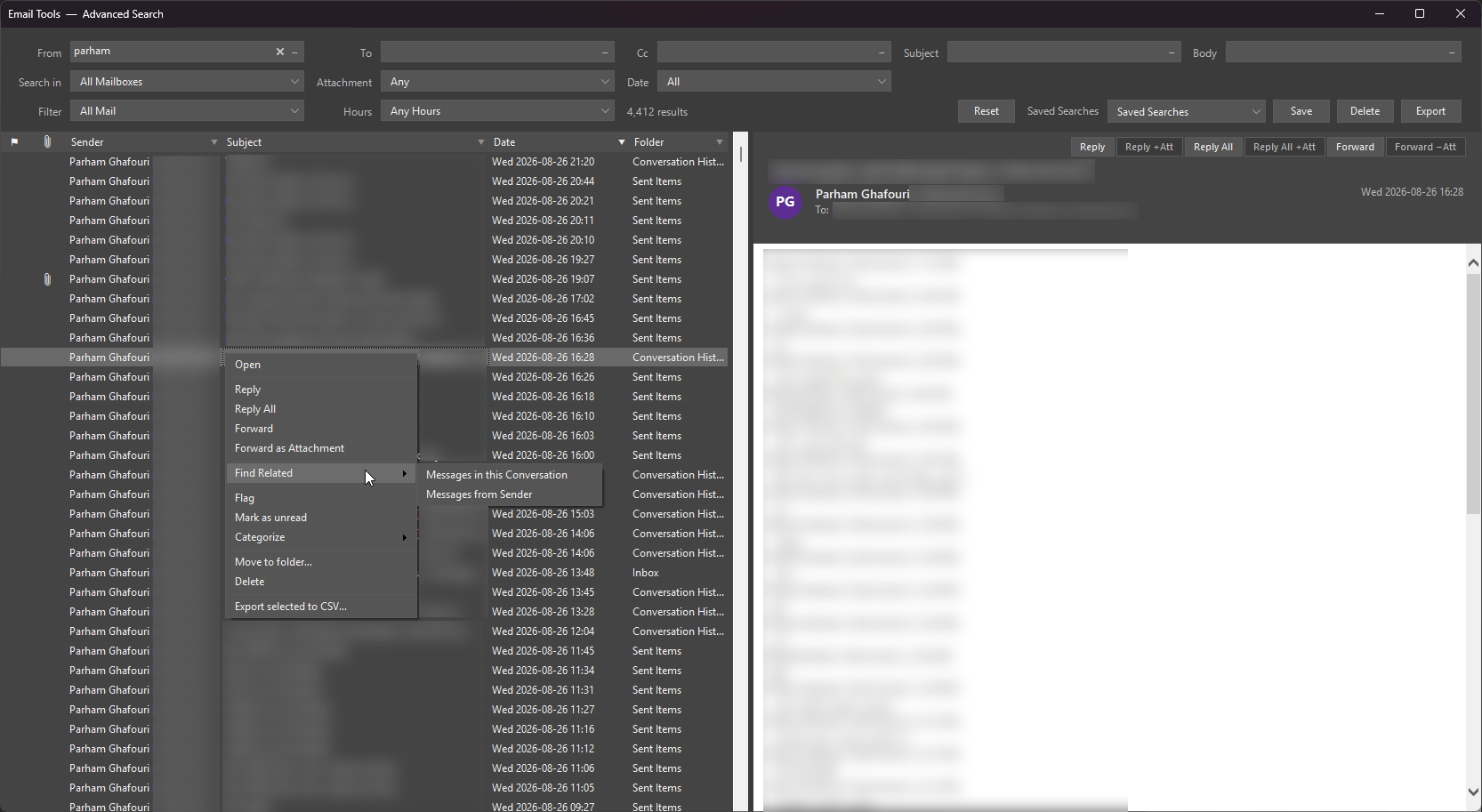
Instant query execution across all mailboxes, mounted PST archives, and historical conversation threads.
- SQLite FTS5 Trigram Engine: Builds an ultra-compact, contentless trigram index locally. Searches message bodies in milliseconds without reopening or downloading messages from Exchange.
- Dedicated Attachment Filename & Wildcard Filter: Search specifically for attached filenames or extensions (e.g.
*.pdf,invoice,*.xlsx) with smart inline signature noise filtering. - Sandboxed HTML Preview: Includes Mark-of-the-Web isolation, web beacon suppression, script execution prevention, and SSRF blocking for completely safe message inspection.
- Match Highlighting & Stepper: Highlights matching query terms directly in the preview pane with instantaneous Previous / Next match navigation.
- Multi-Criteria Queries: Seamlessly combine From, To, Cc, Subject, Body, Attachment Name, Date Range, and Hourly Windows.
- Rich Context Actions: Right-click any result to Open, Reply, Reply All, Forward, Flag, Categorize, Move, Delete, Find Conversation, or Export to CSV (with formula-injection protection).
2. Task Tracker & Workflow Automation
Never let critical commitments, pending customer requests, or follow-ups slip through the cracks. Task Tracker bridges the gap between fast-moving emails and actionable task management directly inside Outlook.
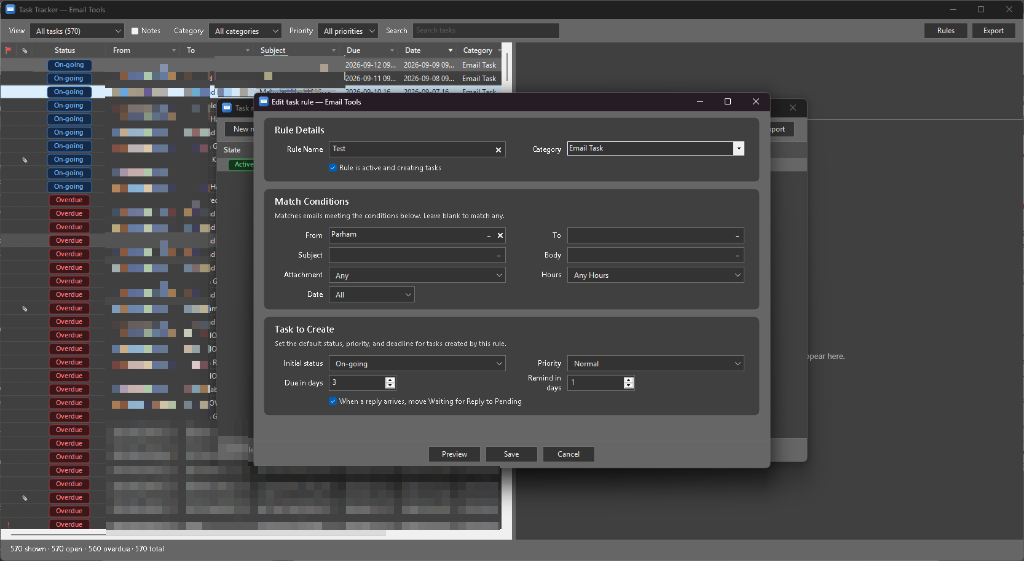
High-contrast Kanban status summary cards, real-time filtering, and full thread context inspection.
- Kanban-Style Status Summary Cards: Instantly overview tasks categorized as To Do, In Progress, Waiting for Reply, Completed, and Overdue with live counters and color-coded indicators.
- Granular Automation Rule Builder: Create powerful automation rules matching Incoming or Outgoing mail, specific senders/recipients, subject/body keywords, file attachment extensions, and urgency categories.
- Auto-Resolve on Reply: When you receive a reply to an email where you were waiting on feedback, Task Tracker automatically transitions the task state, keeping your workflow synchronized without manual upkeep.
- Full Thread Inspection: Inspect subject, sender, all direct (
To) and copied (Cc) recipients, due dates, reminder deadlines, and custom task notes in an integrated side pane. - Modern Windows 11 Design: Designed with Windows 11 DWM rounded corners, anti-aliased card borders, and automatic Office theme synchronization across Light, Dark Gray, and Black.
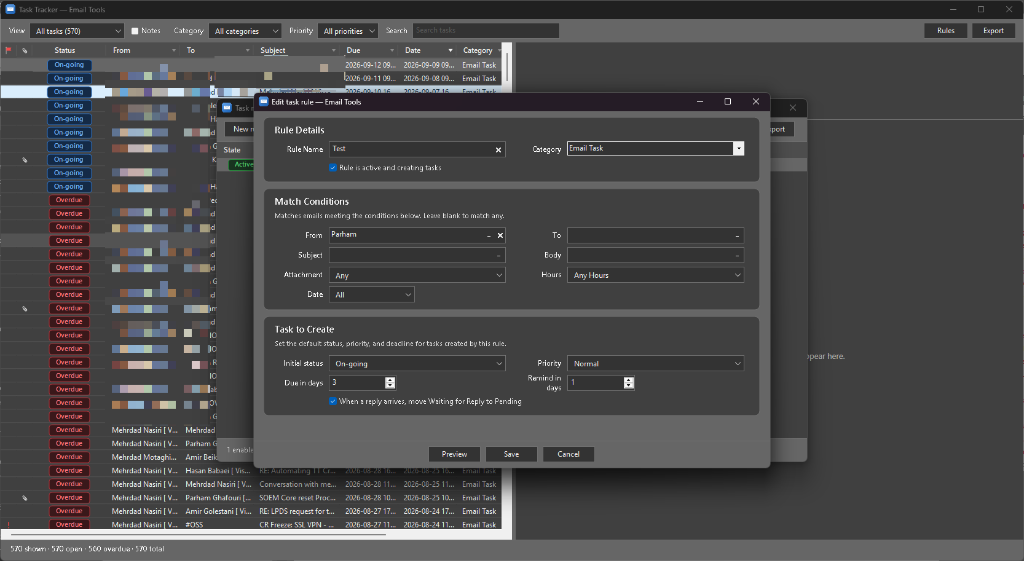
Visual rule editor supporting multi-field condition logic, exclusions, priority assignment, and default due date offsets.
3. Smart Archive & Capacity Management
Never receive an Exchange “Mailbox Quota Exceeded” warning again. Smart Archive moves aging emails from your live Exchange mailbox into neatly organized, seasonal local PST archives (e.g., 2026-Season1.pst).
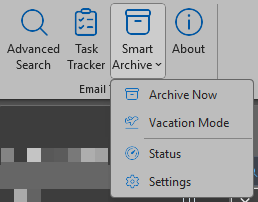
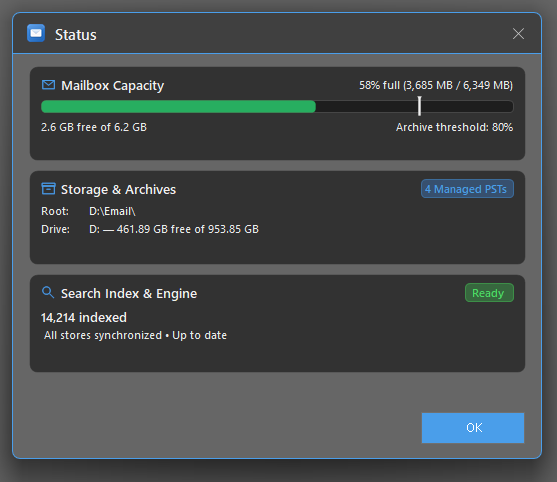
- Fluent 2 Status & Health Cockpit: Visual progress gauges showing live Exchange mailbox quota usage (with dynamic green/orange/red capacity thresholds) and archive drive free/total capacity meters.
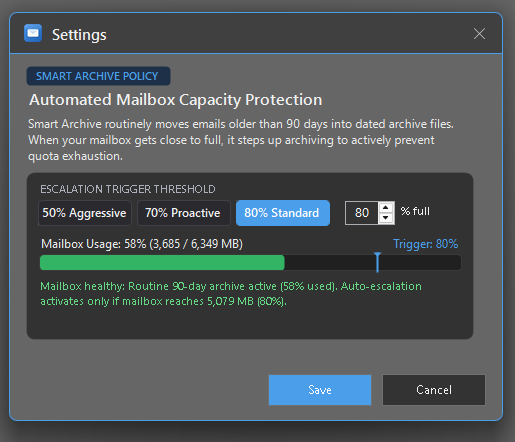
- Dynamic Ladder Acceleration: Automatically identifies mailbox age distribution and skips empty date brackets to archive oldest mail first under pressure.
- Emergency Quota Safeguard: Automatically triggers intensive archival at 90% quota capacity and returns mailbox volume below your configured safe threshold.
- Seasonal 45 GB Auto-Rollover: Automatically partitions archives into quarterly volumes (
YYYY-Season1throughSeason4) with an automatic rollover boundary at 45 GB to prevent PST corruption. - 2-Hour Safety Floor Cooldown: Prevents continuous background disk churning once the mailbox is safe.
- Zero-Freeze Native Dialogs: Modern, non-blocking UI dialogues styled with Windows 11 rounded geometry and theme-reactive typography.
4. Attachment & Quick Workflow Actions on the Home Ribbon
Eliminate repetitive attachment and workflow steps directly from Outlook’s main Home tab.
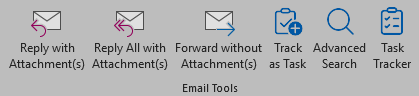
- Reply with Attachment(s): Composes a reply while automatically cloning and preserving all original files.
- Reply All with Attachment(s): Keeps all original attachments intact while replying to all original participants.
- Forward without Attachment(s): Strips bulky attached files to save bandwidth while intelligently retaining embedded company signature images.
- Track as Task: Instant 1-click email-to-task conversion with direct synchronization into the Task Tracker dashboard.
5. Zero-Disruption GAL Display-Name Synchronization
When colleagues change roles, departments, or surnames in the corporate Active Directory / Exchange Global Address List (GAL), Outlook often preserves obsolete names in historical emails, rules, views, and search folders.
- Safe Address Mapping: Resolves recipient addresses against the corporate GAL and updates historical display labels only when a 1:1 unambiguous match is verified.
- Out-of-Process Rule & View Repair: Updates Outlook Rules, Views, and Exchange Search Folders safely after Outlook closes to avoid UI thread deadlocks.
- Safe Checkpointing: Checkpoints progress incrementally and resumes seamlessly across restarts without generating invasive mailbox diagnostic logs.
6. Vacation Mode & Overdue Reminder Cleanup
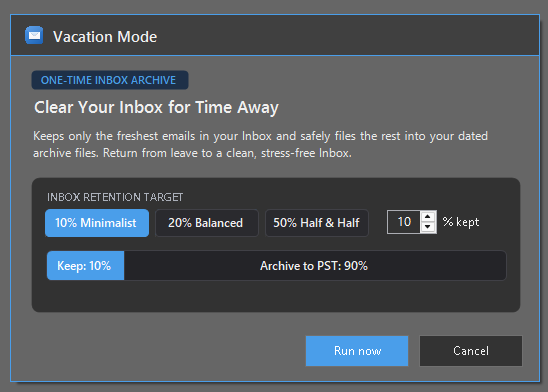
- Vacation Mode: Lighten your Inbox before heading out on leave. Retains the newest percentage of your Inbox (e.g., top 10%) and safely archives the rest into seasonal storage.
- Overdue Reminder Dismissal: Automatically and silently dismisses calendar reminder popups for meetings that have already concluded, preventing notification clutter each morning.
📦 Installation & Upgrades
Fresh Installation
- Download
EmailTools_Setup.rarfrom the Latest Release. - Extract the archive and launch
EmailTools_Setup.exe. - Open Microsoft Outlook. The Email Tools tab will be ready on your ribbon.
Upgrading from an Earlier Version
- Do NOT uninstall the previous version. Simply run the new installer; it automatically closes Outlook, updates all binaries, and preserves your existing database and settings.
- Self-Healing Database Migrations: Upgrades seamlessly migrate existing search indexes and task tracking schemas in under 15 milliseconds without requiring a slow re-index.
💻 System Requirements
| Specification | Requirement |
|---|---|
| Operating System | Windows 10 or Windows 11 (64-bit / 32-bit) |
| Microsoft Outlook | Outlook 2016, 2019, 2021, or Microsoft 365 Desktop Client |
| Runtime | Microsoft .NET Framework 4.8 or later |
| User Privileges | Standard User (Zero administrator privileges required) |
🛡️ Privacy, Security & Architecture
Email Tools was engineered with an uncompromising commitment to enterprise data sovereignty and privacy:
- 100% Local Execution: All database queries, FTS5 full-text indexing, and archiving logic execute strictly on your local PC.
- Zero Cloud Leakage: No email bodies, metadata, or analytics are ever transmitted to external servers.
- Sandboxed Preview Engine: The message preview renders with Mark-of-the-Web isolation, suppressing scripts, tracking pixels, and unauthorized external network calls.
- Authenticode Code-Signed: All binaries (
EmailTools.dll,EmailTools.NameRepairWorker.exe,EmailTools.UpdateRunner.exe,EmailTools_Setup.exe) are digitally signed with an Authenticode certificate (42536C317058B3308A75D89E19F849B0B08BD39A) and include RFC 3161 timestamps.
🌟 Support & Community
If Email Tools saves you time or frees up your mailbox, please consider giving the repository a star!

Architected & Developed by Parham Ghafouri

© Parham Ghafouri. Released as Freeware under the MIT-compatible open software license.
